QR Code for Google Reviews: How to Create and Use One (2026)
Learn how to create a QR code for Google reviews in 3 ways. Plus placement strategies, design tips, and common mistakes that cost you reviews.


Published at:
Updated at:A QR code for Google reviews gives customers a one-scan shortcut to your review page, eliminating every friction point between "great experience" and "written review." Businesses that make reviewing easy collect reviews at two to three times the rate of those relying on verbal requests alone, according to BrightLocal's consumer review research.
This guide covers three methods for creating your Google review QR code, where to place it for maximum scans, design best practices, and the mistakes that quietly kill your results.
Want to skip the manual work entirely? Book a free demo to see how Endorsa automates review collection through SMS, email, and QR codes.
What Is a Google Review QR Code and Why Does It Work in 2026?
A Google review QR code is a scannable image that links directly to the "write a review" form on your Google Business Profile. When a customer scans it with their phone camera, the review form opens instantly with no searching, no typing, and no extra steps.
QR codes work for review collection because they solve the biggest problem in the process: timing. 76% of people who search for a local business on their phone visit within 24 hours, and the best time to ask for a review is when the experience is fresh. A QR code on a receipt, table tent, or checkout counter lets you capture that moment before the customer walks out the door.
Google now offers a built-in QR code generator directly inside Business Profile, which means you no longer need third-party tools for the basic version. But as you'll see below, the built-in option has limitations that matter for serious review collection.
According to Whitespark's local ranking study, reviews account for approximately 20% of local pack ranking factors, making every additional review a direct input to your search visibility.
How to Create a Google Review QR Code (3 Methods)
There are three ways to create a QR code for Google reviews, each with different trade-offs for customization, tracking, and ease of use.

Method 1: Google's Built-In QR Code (Free, No Setup)
Google added a native QR code feature to Business Profile in 2025. Here is how to access it:
Open a desktop browser and sign in to the Google account connected to your Business Profile.
Search for your business name or type "my business" in Google Search.
Click "Read Reviews" on your Business Profile panel.
Click "Get more reviews."
Right-click the QR code image and select "Save image as..." to download it.
This method is free and takes under two minutes. The limitation: you cannot customize the design, add your logo, track scan analytics, or create different codes for different locations.
Method 2: Third-Party QR Code Generator (Free or Paid)
If you need branding, analytics, or dynamic URLs, use a dedicated QR code generator:
Copy your Google review link from Business Profile (the same "Get more reviews" window from Method 1).
Paste it into a QR code generator such as QRCodeKit, ME-QR, or Canva.
Customize the design: add your logo, change colors to match your brand, and add a call-to-action frame.
Download in high resolution (PNG or SVG for print).
The advantage here is analytics. Paid QR code tools show you how many times the code was scanned, when, and from what device. This data tells you which placement locations actually drive reviews.
Feature | Google Built-In | Third-Party Generator |
|---|---|---|
Cost | Free | Free or $5-15/mo |
Branding | No customization | Logo, colors, frames |
Scan Analytics | None | Scan count, time, device |
Dynamic URL | No | Yes (update without reprinting) |
Method 3: Review Automation Platform (Integrated Approach)
The third option is using a review management platform that generates QR codes as part of a larger collection system. This is the approach that connects QR scans to your full review pipeline: the scan triggers a follow-up sequence, the platform monitors for new reviews, and AI-generated responses handle the replies.
We built Endorsa to work this way. Our platform generates your review QR code while also utilizing automated SMS and email campaigns, so the QR code is one part of a coordinated review collection strategy rather than a standalone tactic.
Where to Place Your Google Review QR Code (By Industry)
Placement is the difference between a QR code that collects 50 reviews per month and one that collects zero. The right location depends on your business type and where customers feel most satisfied with their experience.
Industry | Best Placement Locations | Timing |
|---|---|---|
Restaurants | Table tents, receipt footer, menu insert, host stand | After the meal, before the check |
Dental / Healthcare | Checkout desk, appointment card, post-visit email | After treatment, at checkout |
Home Services | Invoice, completion walkthrough card, van magnet | At job completion |
Auto Repair | Service desk, key tag, invoice staple | At vehicle pickup |
Retail | Receipt, checkout counter sign, shopping bag insert | At purchase |
Salons / Spas | Mirror station, appointment card, checkout counter | During or right after service |
Physical placement rules that increase scan rates:
Print the QR code at a minimum of 0.8 x 0.8 inches for reliable scanning. Place it at eye level or on surfaces where customers naturally pause, like checkout counters and waiting areas. Always pair the code with a clear call-to-action: "Scan to tell us how we did" or "Leave us a Google review" works better than a bare QR code with no context.
Digital placement opportunities most businesses miss:
Add your QR code to email signatures, post-service confirmation emails, social media profiles, and your website's contact page. For Canadian businesses sending review requests via email or SMS, make sure your process complies with CASL (Canadian Anti-Spam Legislation) by including proper consent and unsubscribe mechanisms. Endorsa is a Google review automation platform built in Canada that helps businesses collect, manage, and respond to reviews on autopilot, with CASL-compliant SMS and email workflows built in.

QR Code Design Best Practices for More Scans
A well-designed QR code can increase scan rates by 30% or more compared to a plain black-and-white square. Here are the design principles that matter.
Add your logo to the center. Branded QR codes build trust. Customers are more likely to scan a code with a recognizable logo than an anonymous square. Most QR code generators support logo insertion without breaking scannability.
Use high contrast colors. The code must contrast sharply with its background. Dark code on a light background works best. Avoid light-on-light or dark-on-dark combinations that confuse phone cameras.
Include a clear call-to-action. According to BrightLocal's research on consumer review behavior, 98% of consumers read online reviews for local businesses, but they need a prompt to write one. "How did we do? Scan to review" consistently outperforms a bare code.
Test before printing. Scan the code with at least three different phones (iPhone, Android, older model) before committing to a print run. Verify it opens the Google review form directly, not your Business Profile homepage. A code that opens the wrong page wastes every scan.
The Spiegel Research Center found that products and services with 5 or more reviews see a 270% increase in purchase likelihood, making every review collected through your QR code a direct contributor to conversion.
Size it for the environment. A QR code on a business card needs to be at least 0.8 inches. On a poster viewed from 3 feet away, aim for 3-4 inches. On a banner or storefront sign, 8 inches or larger. The rule of thumb: the code should be one-tenth the expected scanning distance.
Common Mistakes That Kill Your QR Code Review Results
Most businesses that try QR codes for reviews give up because they make one of these five mistakes.
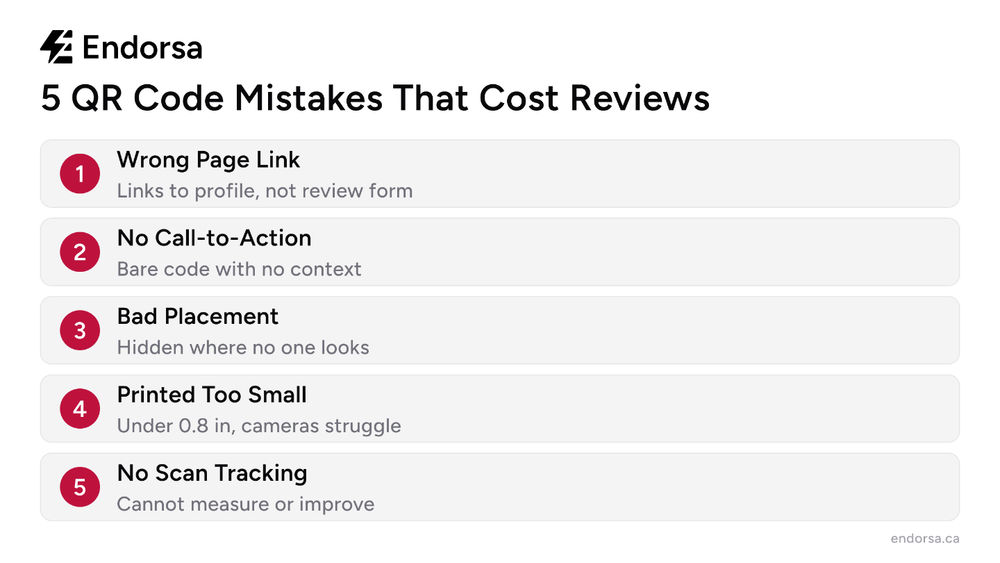
Mistake 1: Linking to the wrong page. Your QR code must link to the direct review form URL, not your Google Business Profile page or your website. The direct review link opens the star-rating prompt immediately. Every extra click you add between the scan and the review form loses customers.
Mistake 2: No call-to-action. A QR code by itself is a mystery box. Customers will not scan something they do not understand. Always include text explaining what happens when they scan: "Leave us a Google review" or "Tell us about your experience."
Mistake 3: Placing it where no one looks. A QR code taped to the inside of a bathroom stall or buried on page 3 of your menu will not get scanned. High-visibility, high-dwell-time locations matter: checkout counters, table surfaces, waiting rooms, and invoices.
Mistake 4: Printing too small. If the code is smaller than your thumbnail, most phone cameras will struggle to read it. This is especially common on business cards and receipts where space is tight. Test the exact print size before ordering in bulk.
Mistake 5: Using a static code with no tracking. If you cannot measure how many people scan your code, you cannot improve your placement strategy. A free third-party generator with basic analytics gives you scan counts per day, which is enough to compare locations and test new placements.
How Endorsa Makes QR Codes Part of a Complete Review Strategy
A QR code is a powerful collection tool, but it works best as one piece of a coordinated review strategy. On its own, a QR code catches customers who are physically present and willing to scan. Combined with automated SMS and email follow-ups, you capture the customers who meant to leave a review but forgot.
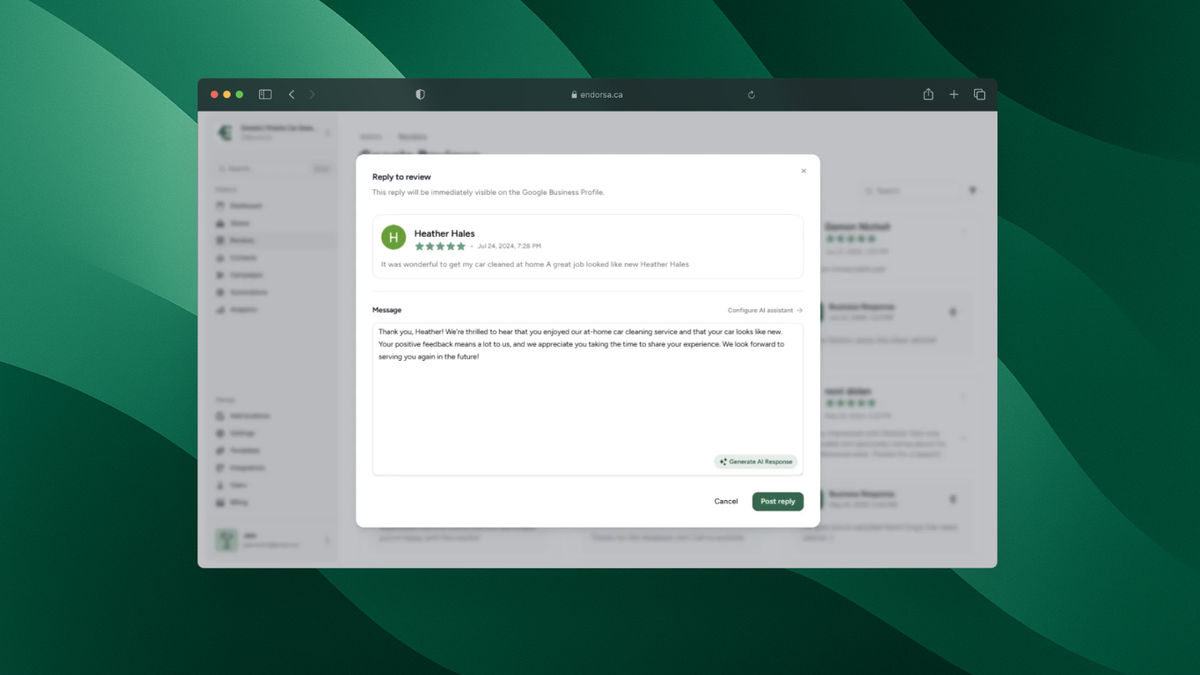
We built Endorsa to connect these channels. Our platform syncs your customer contacts from tools you already use, like Stripe, HubSpot, and QuickBooks, then sends personalized review requests via SMS and email on a schedule. When reviews come in, our AI review assistant drafts personalized responses that match your business's tone, so you can approve and post them in seconds.
The result: your QR code handles in-person collection, your automated campaigns handle follow-ups, and your review management dashboard gives you one place to monitor and respond to everything.
Book a free demo to see how it works for your business.
Frequently Asked Questions
How do I get a QR code for Google reviews?
The fastest method is through Google Business Profile directly. Search for your business on Google, click "Read Reviews," then "Get more reviews," and right-click the QR code to save it. This built-in tool is free but offers no customization or analytics. For branded codes with tracking, copy your review link and use a QR code generator like QRCodeKit or ME-QR.
Is a Google review QR code free?
Yes. Google's built-in QR code generator is completely free and requires no third-party tools. Third-party generators also offer free tiers with basic features. Paid plans (typically $5-15 per month) add branding customization, scan analytics, and dynamic URL updating.
Where should I place my Google review QR code?
Place your QR code where customers are most satisfied and have a moment to scan. For restaurants, that means table tents and receipts. For service businesses, invoices and post-job completion cards. For healthcare, checkout desks and appointment reminder cards. The key principle: catch the customer while the positive experience is fresh.
Can I customize my Google review QR code with my logo?
Google's built-in QR code cannot be customized. To add your logo, brand colors, or a call-to-action frame, copy your Google review link and generate a branded code using a third-party tool. Most generators let you add a logo to the center of the code without affecting scannability.
How many reviews can a QR code generate?
Results vary by placement, foot traffic, and how well you prompt customers. Businesses that place QR codes at checkout with a clear call-to-action typically see 10-30 additional reviews per month. Combining QR codes with automated SMS and email review requests produces significantly higher volumes because you reach customers who did not scan in person.
Do QR codes for reviews work on all phones?
Every iPhone running iOS 11 or later and every Android phone running Android 9 or later can scan QR codes natively through the camera app. This covers the vast majority of smartphones in use today. Always test your code on multiple devices before printing to confirm it opens the correct review form.
Start Collecting Reviews With Every Customer Interaction
A QR code for Google reviews removes the biggest barrier between a happy customer and a five-star review. Create one using Google's free built-in tool, customize it with a third-party generator for branding, or integrate it into a full review automation strategy with a platform like Endorsa. The businesses that collect the most reviews are the ones that make leaving a review effortless at every touchpoint. Book a free demo to see how Endorsa turns every customer interaction into a review opportunity.