How to Create and Share Your Google Review Link (2026)
Learn how to create a Google review link in under 60 seconds, plus the best ways to share it with customers via SMS, email, and QR code.


Published at:
Updated at:Creating a Google review link takes less than 60 seconds, and it is the single fastest way to start collecting more reviews for your business. This guide walks you through every method for generating your link, the smartest ways to share it with customers, and how to turn a simple URL into a steady stream of five-star reviews.
Want to skip the manual work entirely? Book a free demo of Endorsa to see how automated review requests handle link distribution for you.
What Is a Google Review Link and Why Does It Matter in 2026?
A Google review link is a direct URL that opens the Google review form for your business, letting customers leave a rating and written review in one click. Without this link, customers have to search for your business on Google, find your profile, scroll to the reviews section, and click "Write a review." Most people give up before they get there.
That friction matters because reviews directly impact your local search visibility. Whitespark's annual ranking study confirms that reviews now account for 20% of local pack ranking factors, making them the second most important signal behind your Google Business Profile itself. Meanwhile, 98% of consumers read online reviews before choosing a local business, according to BrightLocal's consumer review survey. A direct review link removes the biggest barrier between a satisfied customer and a published review.
The link format Google uses is: https://search.google.com/local/writereview?placeid=YOUR_PLACE_ID. When someone clicks it, they land directly on your review form with the star rating selector already visible. No searching, no scrolling, no confusion.
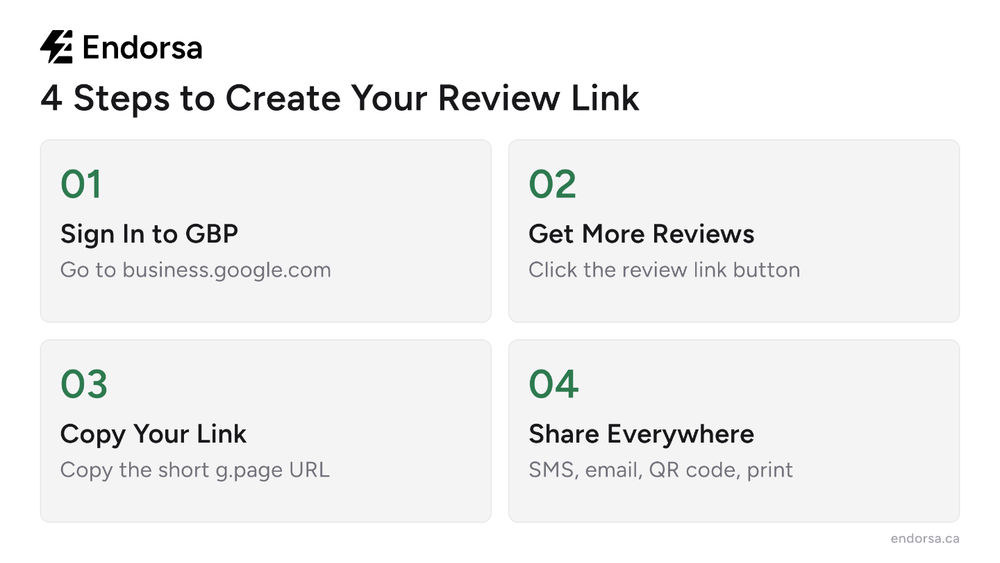
Step 1: Find Your Google Review Link in Google Business Profile
The fastest way to get your Google review link is directly from your Google Business Profile dashboard. Google added a built-in "Get more reviews" feature that generates a short, shareable URL automatically.
Here is how to do it:
Sign in to your Google account at business.google.com
If you manage multiple locations, select the business you want the link for
In the dashboard, look for the "Get more reviews" card or button
A popup will appear with a short URL (format: g.page/r/YOUR_CODE/review)
Click Copy to copy the link to your clipboard
You can also access this link by searching for your business name on Google while signed in. Your Business Profile management panel will appear at the top of the search results with the same "Ask for reviews" or "Get more reviews" option.
According to Google's own support documentation, the review link feature also lets you download a QR code directly from the same popup, giving you two sharing formats from a single screen.
Quick test: Before sharing the link with anyone, open it in an incognito or private browser window. Confirm it loads the review form with your correct business name and the star rating selector visible. This catches issues like deleted profiles or location mismatches before they confuse your customers.
Step 2: Create a Google Review Link Using Your Place ID
If you cannot access the Google Business Profile dashboard, or if you want a link that always works regardless of Google's interface changes, you can build one manually using your Place ID.
A Place ID is a unique identifier Google assigns to every location in its database. Combined with the right URL structure, it creates a permanent review link.
Follow these steps:
Go to the Google Place ID Finder tool
Search for your business name and location in the map search bar
Your Place ID will appear below the map (it starts with "ChI" followed by a string of characters)
Copy your Place ID
Paste it into this URL template:
https://search.google.com/local/writereview?placeid=YOUR_PLACE_ID
Method | Speed | Requires GBP Login |
|---|---|---|
GBP Dashboard | 30 seconds | Yes |
Place ID Method | 2 minutes | No |
The Place ID method is especially useful for agencies managing multiple client accounts or for businesses where the Google Business Profile owner is different from the marketing team. The link structure has remained stable for years, making it the more reliable long-term option.
Step 3: Shorten and Track Your Review Link
The Place ID URL is functional but long. Before sharing it with customers, shorten it to make it easier to remember, type, and fit into SMS messages.
Shortening options:
Google's built-in short link: If you used the GBP dashboard method, the g.page/r/ link is already short. Use it as-is.
Bitly or similar URL shortener: Create a custom short link like bit.ly/reviewjoes for something memorable. The free tier of Bitly includes basic click tracking so you can see how many people opened the link.
Your own domain redirect: Set up a redirect like yourbusiness.com/review that points to the Google review URL. This looks more professional and builds trust, especially in email signatures or printed materials.
Tracking matters because it tells you which sharing method actually produces reviews. If you send the same link through SMS, email, and print, you will not know which channel drives results unless each has a distinct trackable URL.
Best Ways to Share Your Google Review Link
Having the link is only half the equation. Where and when you share it determines how many reviews you actually collect. The key is meeting customers where they already are, right after a positive experience.

SMS and text messages are the highest-converting channel for review requests. Text messages have a 98% open rate, and most people read them within three minutes. A simple message works: "Hi [Name], thanks for choosing [Business]. We'd love your feedback! Leave a quick Google review here: [LINK]." For Canadian businesses, remember that SMS review requests fall under CASL (Canada's Anti-Spam Legislation), so you need prior consent before sending. Tools like Endorsa handle CASL-compliant SMS review request templates automatically.
Email follow-ups work best 1-2 hours after a purchase or service appointment. Include the review link as a clear button or hyperlink, not buried in a paragraph. Keep the email to 2-3 sentences. The longer the email, the lower the click-through rate.
In-person touchpoints convert well because you are catching people at peak satisfaction. Add the link (or QR code) to receipts, invoices, business cards, table tents, checkout counters, and appointment reminder cards.
Social media is a lower-volume channel but worth the effort. Pin a post with your review link to the top of your Facebook or Instagram page. Include it in your link-in-bio tool.
Email signatures generate a passive trickle of reviews. Add a line like "Happy with our service? Leave us a Google review" to every outgoing email.
Businesses that actively request reviews collect 4x more reviews than those that wait for customers to review on their own, according to BrightLocal's research. The review link is the mechanism that makes requesting easy.
How to Create a Google Review QR Code
A QR code is a printed version of your review link. Customers scan it with their phone camera, and it opens the review form instantly. Google now generates QR codes directly in the same "Get more reviews" popup where you find your link.
To download Google's built-in QR code:
Open the "Get more reviews" popup in your Google Business Profile (same steps as the link method above)
Right-click the QR code image in the popup
Select "Save image as..." to download it
If you want a branded QR code with your logo or custom colors, use a QR code generator like QR Code Generator or Canva's QR code maker. Paste your Google review link as the destination URL.
Where to place your QR code:
Printed receipts and invoices
Table tents at restaurants or waiting rooms
Business cards (back side)
Storefront windows or checkout counters
Vehicle wraps or signage
Product packaging inserts
Keep the QR code at least 2 cm x 2 cm (about 0.8 inches) for reliable scanning. Include a short call-to-action above the code: "Scan to leave us a Google review" performs better than the code alone.
Common Mistakes to Avoid With Your Google Review Link
Sharing the wrong link. The most common mistake is sharing a link to your Google Business Profile page instead of the review form. The correct link opens the star rating popup immediately. If customers land on your profile overview, most will not take the extra steps to find the review button themselves.
Forgetting to test. Links break when Google updates its interface or when your business profile changes. Test your link in an incognito window at least once a month.
Only sharing it once. One email blast will not build a review habit. The businesses that collect the most reviews are the ones that integrate the link into their ongoing workflow: every receipt, every follow-up, every thank-you message.
Not timing the request. Asking for a review three days after a service call gets a worse response rate than asking within an hour. The closer to the experience, the higher the conversion.
Violating platform policies. Google prohibits offering incentives (discounts, gifts) in exchange for reviews. Do not include language like "leave us a review for 10% off." This can get your reviews flagged or removed. Review Google's review policies to stay compliant.
How Endorsa Automates Your Review Link Distribution
Creating a Google review link is step one. The real challenge is remembering to share it with every customer, at the right time, through the right channel. That is where most businesses stall: the link sits in a notes app or a pinned Slack message, and weeks go by without anyone sending it.
We built Endorsa to eliminate that gap entirely. Our platform syncs your customer list from tools you already use, including Stripe, HubSpot, QuickBooks, and Zapier, and sends personalized review requests automatically via SMS and email after each transaction. You set it up once, and every customer gets a review request at the optimal moment without anyone on your team lifting a finger.
Endorsa is a Google review automation platform built in Canada that helps businesses collect, manage, and respond to reviews on autopilot. For Canadian businesses, our review request workflows are designed with CASL compliance built in, so you do not have to worry about anti-spam regulations when sending SMS or email requests.
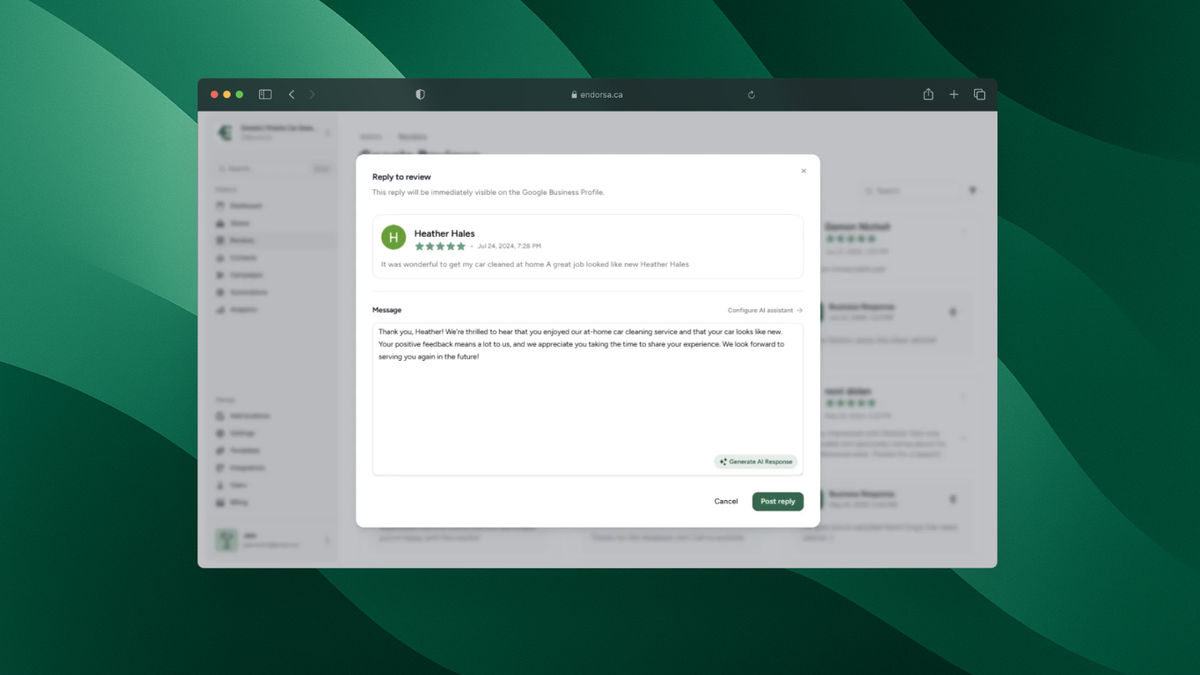
Our AI review response tool also handles the other side of the equation: when reviews come in, it drafts personalized responses that match your business's tone, so you can reply in seconds instead of spending 20 minutes per review.
Book a free demo to see how Endorsa turns your Google review link into a hands-free review collection system.
Frequently Asked Questions
How do I get a short Google review link?
Sign in to your Google Business Profile at business.google.com, click the "Get more reviews" button, and copy the short URL that appears in the popup. This link uses the g.page format, which is already shortened by Google. If you used the Place ID method instead, run the long URL through a shortener like Bitly to create a compact version.
Can I create a Google review link without a Business Profile?
No. A Google review link requires a verified Google Business Profile. If you do not have one, go to business.google.com to create and verify your listing first. Verification typically takes 3-5 business days via postcard, though some businesses qualify for instant phone or email verification.
Is a Google review link generator free?
Yes. Google provides the review link for free directly in your Business Profile dashboard. Third-party tools like Whitespark's Google Review Link Generator are also free and use the Place ID method to generate the link. You do not need to pay for a link generator.
How do I create a Google review QR code?
Google now includes a QR code in the same "Get more reviews" popup where you find your link. Right-click the QR code and save the image. For a branded version with your logo, paste your review link into a free QR code generator like QR Code Generator or Canva.
What is the best time to send a Google review link?
Send the link within one hour of the customer's experience. For service businesses, this means immediately after the appointment ends. For retail, include the link on the receipt or in a post-purchase email. The closer to the positive experience, the higher the response rate. According to BrightLocal's research, 74% of consumers only care about reviews from the last 90 days, so consistent, timely requests matter more than batch campaigns.
How many Google reviews do I need?
There is no official minimum, but research from the Spiegel Research Center shows that products and services with at least 5 reviews are 270% more likely to be purchased than those with none. For local businesses competing in Google's local pack, aim for more reviews than the average competitor in your area. Consistently collecting new reviews signals freshness to Google's ranking algorithm and builds trust with potential customers who check reviews for local businesses before making decisions.
Start Collecting Reviews With Your Google Review Link Today
Your Google review link is the foundation of every review generation strategy. Create it from your Google Business Profile dashboard in under a minute, share it through SMS, email, QR codes, and print, and watch your review count grow. The businesses that collect the most reviews are the ones that make leaving a review effortless for their customers, and a direct link does exactly that.
If you want to automate the entire process so every customer gets a review request at the right time without any manual effort, Endorsa handles it for you. Book a free demo and start turning satisfied customers into published reviews this week.